Plan your electrical installation. Get a complete parts list.
Upload your floor plan, place sockets, switches and lights, then export drawings and a combined materials list for your supplier. Keep products, colours and extras together in one project.
Map keypads, controllers, sensors, lighting and shading across every room. Combine manufacturer libraries in a clear installation layout and build the estimate around your chosen equipment.
Separate libraries for Loxone, Control4, Lutron and Rako
Catalogue product details, colours and variation choices
Customer plans with symbol keys and supplier materials lists
EVERYDAY ELECTRICAL PLANNING
Give every socket and switch a place.
Plan rewires, extensions, new builds and room upgrades. Lay out sockets, switches, lights, consumer units, data and safety devices without needing an automation system.
Upload a floor plan or create one during your trial and with Pro or Business
Room areas, scale, alignment and reusable parts prices
Project-wide materials totals and drawings in Final Issue
YOUR CHOICE OF SYSTEM
Plan with the brands your customers choose.
Bring selected manufacturer devices into the same drawing as sockets, lighting, data and security. Build a coordinated installation plan, price the work and explain it clearly to your customer.
Loxone
Automation controllers, lighting, climate, energy and audio.
These products and logos belong to their respective manufacturers. MSG Plan is independent planning and estimating software; listing a brand does not imply endorsement or partnership. Catalogue support covers layouts, estimates and quotations, not live device control or manufacturer programming.
Logo credits
Loxone logo sourced from its official press page. Control4 and Lutron logo assets sourced from Control4’s website; Rako logo sourced from Rako’s website. All brand trademarks remain with their owners.
ONE WORKFLOW. EVERY DETAIL.
Electrical installations
·
Security systems
·
Heating & renewables
FROM DRAWING TO DECISION
A better way to bring it all together.
Keep the design, the numbers and the customer proposal in the same project.
01
Plan the installation
Import and crop a PDF or image into separate floors. Set the scale, draw rooms and place devices exactly where they belong.
02
Select products and extras
Choose the correct catalogue products, colours and extras on Devices. Review quantities and current product prices.
03
Prepare Final Issue
Bring completed materials lists and floor drawings together in Final Issue, ready to review and export.
NEW · FLOOR PLAN DESIGNER
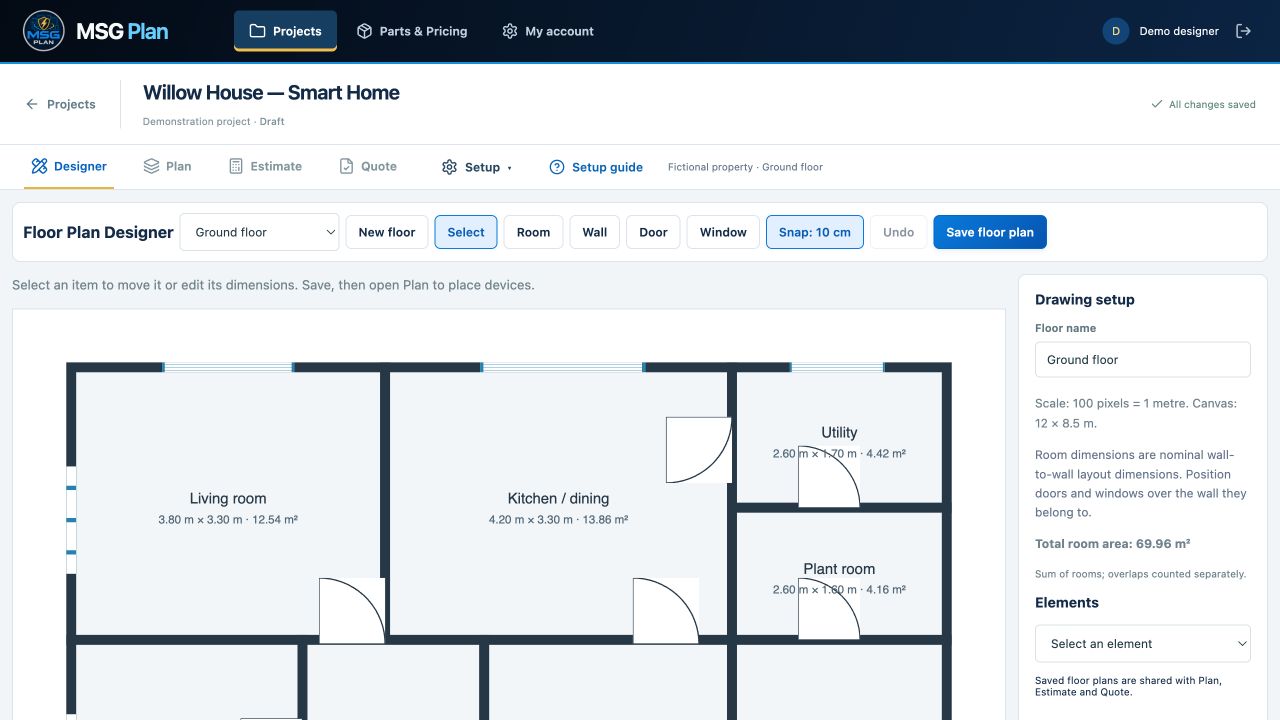
No floor plan? Create your own.
Included during your free trial and with active Pro and Business packages. Create rectangular rooms and walls, add doors and windows, then set precise dimensions in metres. Save and continue directly in Plan—your rooms and scale are already there.
Actual designer screen using fictional demonstration data. Starter supports uploaded drawings; Designer is included during the trial and requires Pro or Business afterwards.
Room areas and device notes
Edit room boundaries, show or hide labels and calculate m² using your drawing scale. Keep installation notes with each device. Combined room area is a sum; overlaps count separately.
Supplier bill of materials
Download a PDF or CSV from Final Issue with a simple project-wide list of parts, selected extras, combined quantities and part numbers. Supplier lists contain no prices.
Help when you need it
Follow the seven-step project setup guide, from company branding and parts to your final quote. Close it at any time and reopen it from Setup guide. Project settings and revisions are grouped under Setup.
These demonstration screenshots show an earlier interface using a fictional company and project. See Latest Updates for the current workflow. All names, layouts and prices shown are demonstration data.
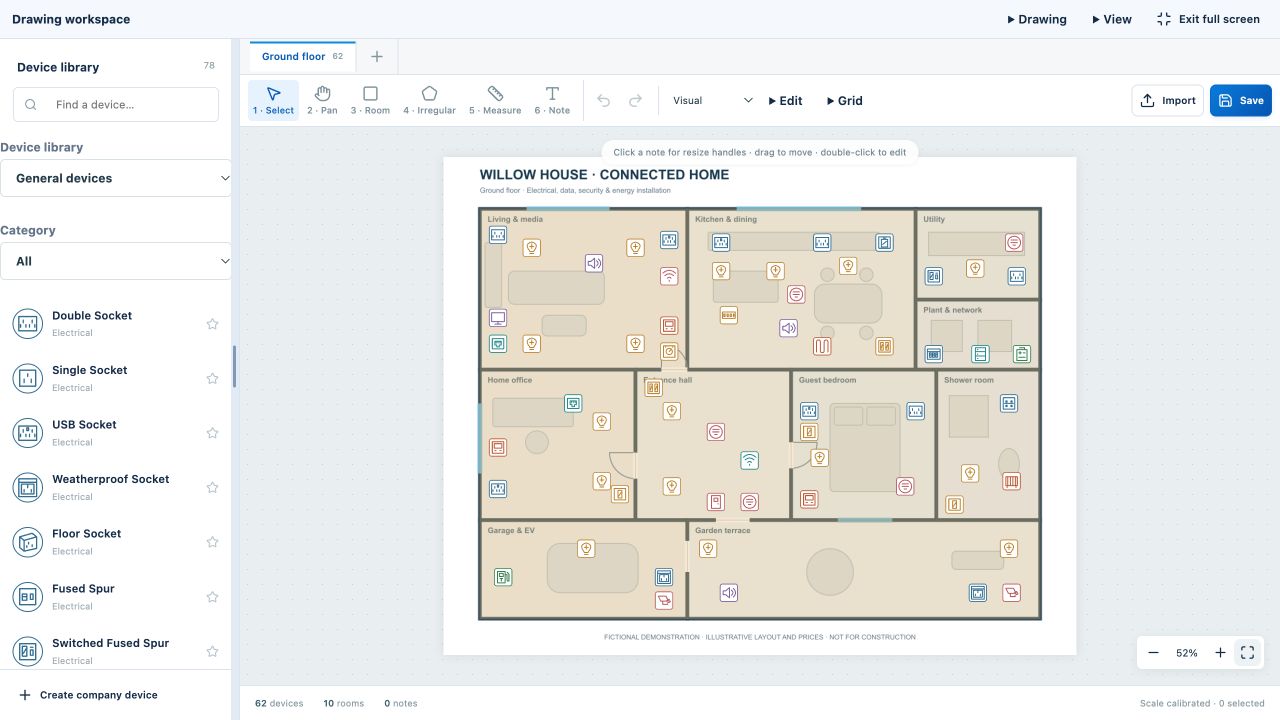
Place devices and choose variations
Choose a back box for each socket on the floor plan. Resize, rotate and align symbols in a workspace built for installation design.
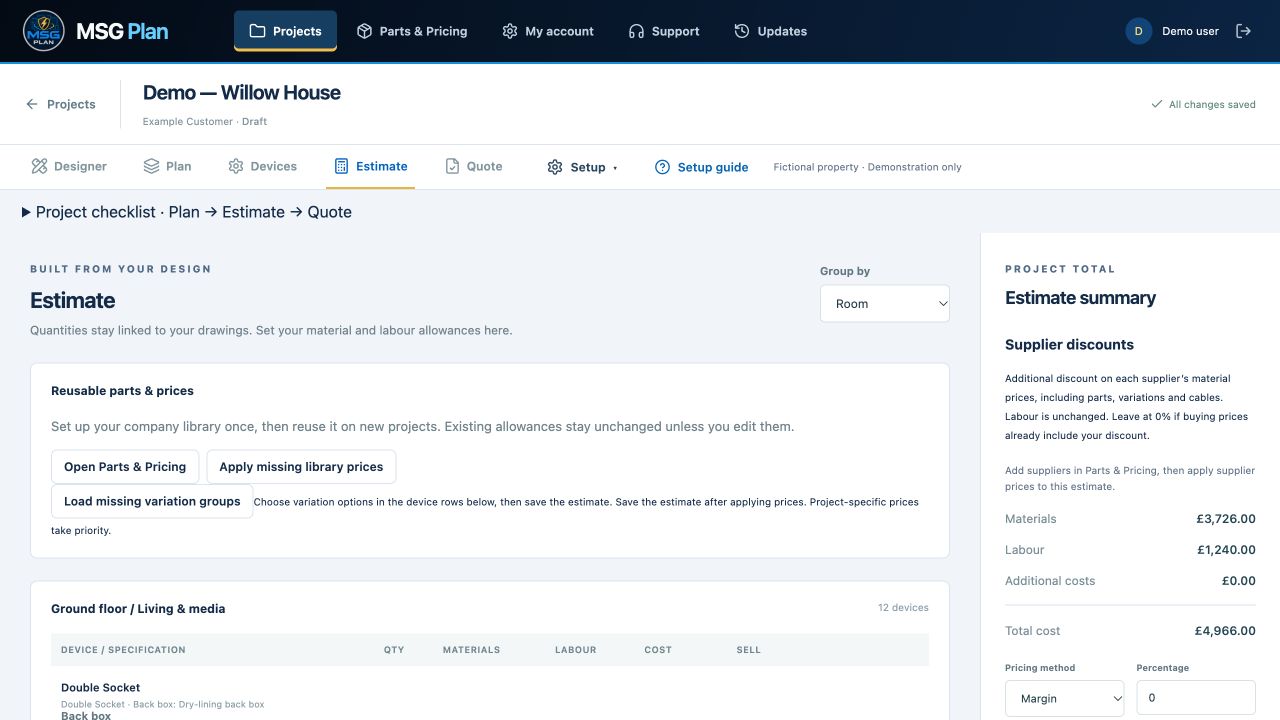
See what the installation includes
Review quantities, selected variation parts, company material prices before preparing your customer quotation.
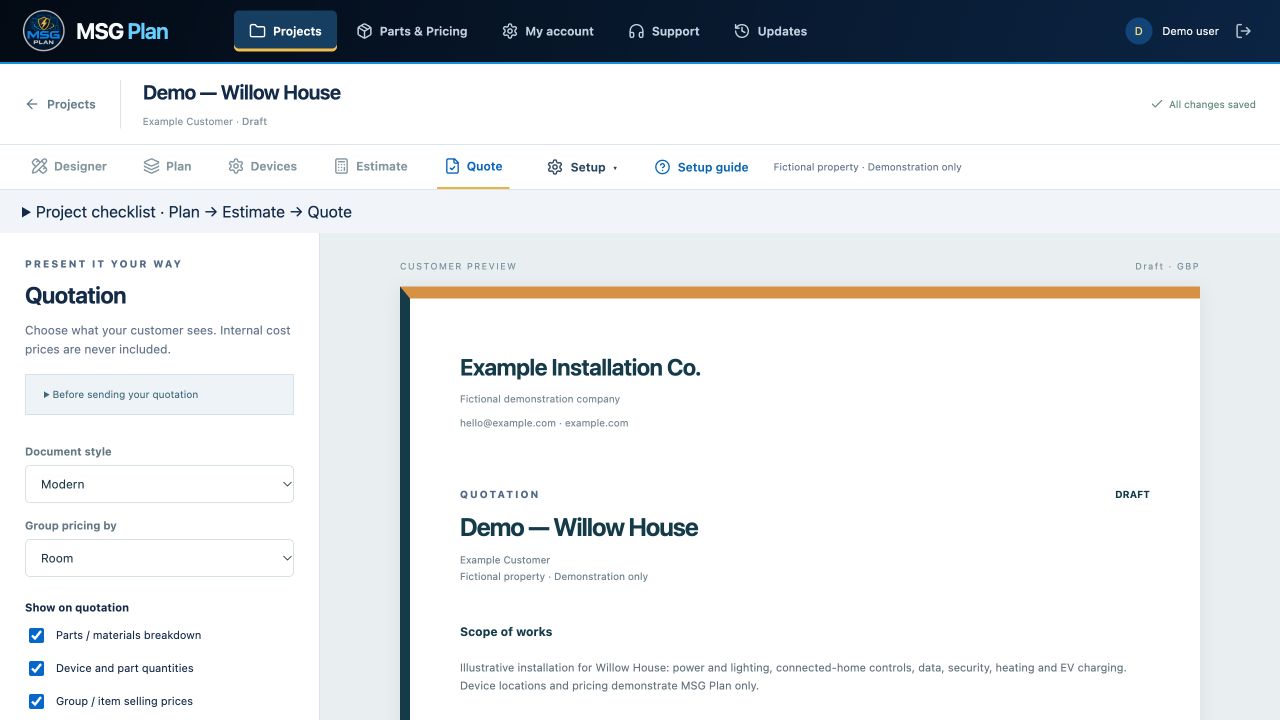
Choose how your proposal looks
Preview selected floor plans with a device key. Choose Professional, Simple, Modern or Classic, and control whether customers see individual prices or only the total.
YOUR QUESTIONS ANSWERED
Installation planning and estimating, explained.
What does MSG Plan help electrical installers do?
Upload a floor plan, position sockets, switches, lighting and other devices, define rooms and calculate material costs. Create a branded quotation from the same project.
Can I use MSG Plan to quote Loxone installations?
Yes. The catalogue includes Loxone products and variants organised by category, with drawing symbols and UK list-price defaults. Check each product price manually before issuing. This supports planning and quoting, not live Miniserver control or Loxone Config synchronisation.
Does the supplier materials list include prices?
The supplier bill of materials shows combined quantities and part numbers without prices. Review product prices manually before each issue.
Does MSG Plan replace MSG Connect?
They serve different jobs. MSG Plan designs and prices proposed installations. MSG Connect manages properties, installed assets and service records. Each has its own subscription and workspace.
Designed around the everyday work of planning installations and preparing clear customer proposals.
Plan and quote Loxone installations
Explore Loxone products and variants organised by category, with dedicated drawing symbols, UK list prices and your own supplier prices. Place them on a plan, choose Touch Pure Tree finishes and use your own prices in estimates and quotations. Catalogue support only; live control and Loxone Config synchronisation are not included.
A growing device and parts library
Sockets, lights, security, thermostats, boilers, EV chargers, solar panels and more. Save favourites and create your own company devices.
A drawing editor that stays out of your way
Resize and rotate icons, snap them to a grid, align rows and columns, and expand your workspace. New devices follow your saved icon size.
Clear project-wide quantities
Plan devices across rooms and floors, then combine matching parts into a simple project-wide materials list.
Control who sees what
Separate design, estimating and quote permissions so each team member has the access they need.
A record of every proposal
Keep issued quotation revisions and lock accepted work to preserve the agreed details.
Your business on every document
Add your logo, company details, scope, exclusions and payment terms to professional PDF quotations.
LATEST UPDATES · OCTOBER 2026
More planning. Less repeated entry.
Recent improvements to parts, circuits and Final Issue.
Final Issue brings everything together
Choose products, colours and extras on Devices, then use Final Issue to review completed materials lists and drawings ready for export. The separate Estimate tab has been removed; the workflow now focuses on parts and planning.
Clear supplier materials lists
The bill of materials combines matching items across the project into a simple list of total quantities and part numbers, without supplier-facing prices.
Organised Master Parts
Master administrators can create and remove categories and subcategories. Loxone, Rako, Lutron and Control4 products are grouped by manufacturer and product family. Edit each product in one simple form.
Easier spreadsheet updates
Export categories, subcategories, product details, supplier/store, colour, quantity, part numbers and prices. Edit existing rows or add new products, then review the import before saving.
Save product and add new
In Master Parts, save a product and immediately open the next entry with its supplier, colour and category already selected.
More control over consumer units
Business and Master can design single-phase and three-phase boards, assign circuits to breakers and select ratings and way positions. Three-phase positions are numbered and marked L1 brown, L2 black and L3 grey. Choose an SPD and review parts quantities from the designer or manual breaker entries.
Circuit visibility and cable details
Show or hide individual wiring circuits or all circuits to review a clean plan or its wiring. Record cable type, size and length alongside your circuit selections.
Less repetitive entry
Product details come from the catalogue. Select colours and extras on Devices; None — no extra contributes no extra items or cost. Refreshing restores the selected project and tab.
Master catalogue management is available to administrators. Consumer Unit Designer is available on Business and Master.
Plan devices, cables and supplier costs together
Reusable parts and supplier prices
Keep devices, cables, variations, and suppliers together in Parts & Pricing. Master Parts uses a simple product list with an Edit product button, category and subcategory filters. Use the shared catalogue as a starting point and maintain your company’s supplier references and negotiated prices.
Cable quantities and installation costs
Add cable type, conductor size and cores, then enter lengths in metres. Include wastage, and drum quantities in the estimate. Compare supplier pack prices on a per-metre basis and include cables in the supplier bill of materials.
Symbols for electrical and smart-home plans
Choose from 765 searchable symbol options, including channel, zone and port variants. Separate Loxone, Control4, Lutron and Rako groups keep manufacturer products easy to find alongside standard electrical devices. Symbols appear on plans and exported device keys.
From buying price to customer quotation
Set preferred suppliers, import supplier prices for review and use company margins. Review draft estimates before issuing: saved quotations retain their prices. Export a supplier bill of materials as PDF or CSV without exposing internal margins.
Cable lengths, quantities and prices are advisory estimates and are not guaranteed by MSG Plan. Check measurements, cable specifications, installation requirements and current supplier prices before ordering or installation. Cable routes and circuit design are not calculated automatically.
Prices exclude VAT. MSG Plan and MSG Connect are separate subscriptions. All MSG Plan packages include uploaded floor plans, room estimates, supplier materials exports and branded PDF quotations. Floor Plan Designer is included during your trial; afterwards it requires an active Pro or Business plan. Completed projects and design options count towards your project limit. Choose or manage your subscription in My Account.
MSG PLAN
One complete project workflow.
Plan → Devices → Final Issue
Floor-plan editor and device library
Materials and margin calculations
Branded quotations and PDF exports
Team permissions and revision history
YOUR WORKSPACE STARTS HERE
From sign-up to your first floor plan.
Register your company
Enter your company name, your name and your email address.
Verify your email
Open the secure email link and choose your own password. Check your junk folder if the email hasn’t arrived.
Log in and start a project
Upload your drawing, define the rooms and start placing devices. Already registered? Log in to MSG Plan.
PART OF THE MSG FAMILY
A dedicated space to plan.
Use MSG Plan as your planning workspace. If you already use MSG Connect, talk to us about how the two can fit your workflow.
SEE IT FOR YOURSELF
Bring a project. We’ll show you the possibilities.
Arrange a walkthrough of planning, estimating and quotations, and discuss the right setup for your business.
Let’s talk about MSG Plan.
Ask a question, arrange a demo or discuss a package.